-
April 12th, 2010, 11:53 PM
#1
Inactive Member

Download and convert YouTube to iPad on Mac
YouTube.com is a great resource. YouTube allows users to freely upload, view, and even share video clips on your blog or web site. Now the new iPad is a much better device to videos on than any previous version of the iPod and iPhone, there are many people curious about how to get their YouTube video files into a format that the iPad can play. Thankfully, there are a slew of sites and software packages that will allow you to convert just about any video format to the H.264 mp4 format that iPad requires.
Here are the best solutions for converting YouTube video to iPad online as well as off. Some will convert video you have on your local Mac computer while others will only convert videos that you find online. In any case, you will wind up with a video file in the correct format for your iPad or other mobile device.
Online sites to easily download and convert YouTube for iPad
CatchYouTube is a free service that converts online videos to several formats including the MP4 format that you need for Apple devices. Simply paste the video URL from sites like YouTube, Google video, MetaCafe, etc. and selects the .mp4 output format.
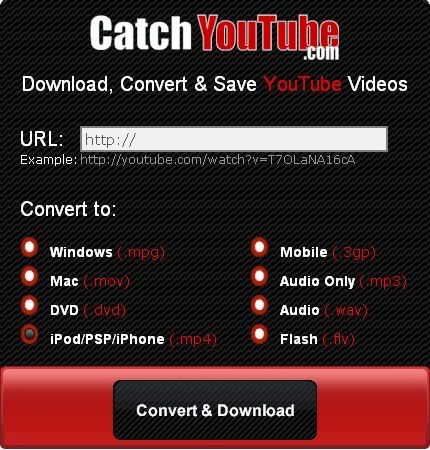
While the service is extremely simple to use, it must be mentioned that it can take an eternity sometimes for this service to convert even the smallest video. Sometimes it just times out or fails without any explanations. Still, most of the time it will do the trick if you want to do a quick conversion or two. For more than a handful, you'll be better off with another solution that handles batch processing.
VideoDownloader is similar to CacthYouTube except it doesn't provide you with any output options. What you see is what you get when you download the video from the services they support: YouTube, Google, BlipTV, DailyMotion and a few others. So, if you can't download the video .mp4 format, you'll have to convert it with another separate utility which isn't a big deal or expense.
Movavi Online Convert is another online video converter that provides the unique ability to download and convert up to five different online videos as one video. You can add all of the URLs and the service will send you an email with a link to download when it's done. It could take a long time, so it's not good if you're in a hurry.
Software to batch download and convert YouTube for iPad
There are a few software that focus on downloading and converting YouTube videos on Mac. For example, there?s the iFunia YouTube Converter for Macthat downloads YouTube videos and converts them to the appropriate iPad MPeg-4 H.264 format for you. The program also features a handy batch mode which allows you to download several YouTube videos at one time, making this process more efficient. Here are the easy steps for Mac users how to use the product.
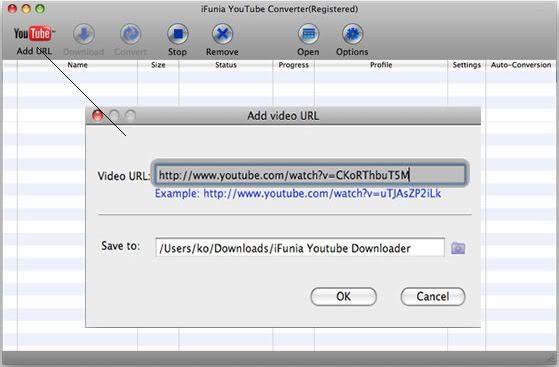
Step 1. Launch and add YouTube URL to iFunia YouTube Downloader for Mac
Download iFunia YouTube Converter for Mac and open the tool. Click "Add URL" button to add YouTube URL. There is the field for a Video URL, the field for an output path. Simply copy-n-paste a YouTube or Google URL to the Video URL field. The URL looks like: YouTube - Serious Frog Jumpin' in Calaveras County. And then specify a directory on your computer to save the output FLV files. Note that you can only add one video URL at one time. But you're able to add multiple videos for download by repeating this step.
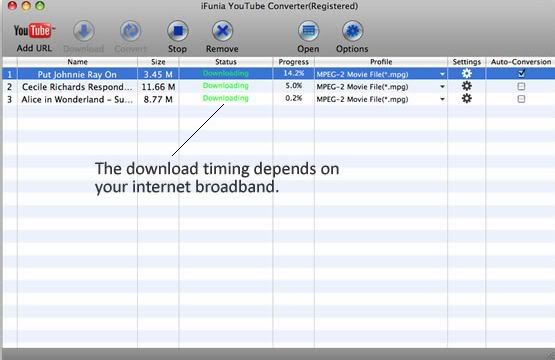
Step 2. Download YouTube videos
After the URLs have been added, click "Download" button and start your magic YouTube downloading now. The download timing depends on your internet boardband.
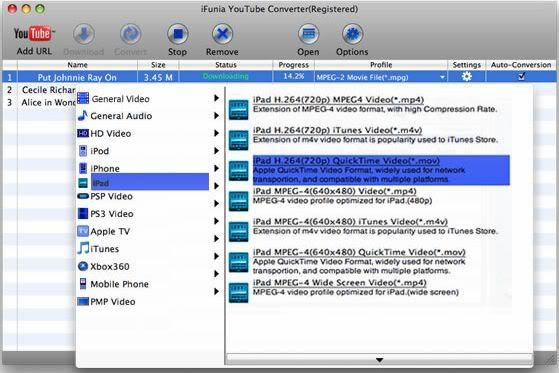
Step 3. Convert YouTube to iPad-ready format
After the download is complete, you can now convert them to the formats compatible with iPad. Choose the output format for your iPad from the ?Profile? drop-down menu list and click "Convert" button. There are also various output settings like bitrate, channel, framerate, resolution, etc. Personally, I prefer to stick with the default profile because the good video and audio quality given by the program. You just have to pick and choose which profile you want to keep on your iPad. Play around and see which results you like best.
How to Copy YouTube Videos to iPad via iTunes
After converting all your YouTube FLV videos to the appropriate video format for your iPad, you'll need to store them on your computer in the right place so that iTunes can do its job and copy the videos to your device. The best thing to do is create a new folder on your system called, for example, iPad Videos, and copy the newly converted videos to that folder. You can also get into the habit of converting new videos straight to that folder to save steps and time later on.
Once you have your videos in one place, simply launch iTunes, click on the Movies icon and click the File menu. Select Add Folder to Library, and then select the new iPad Videos folder that you created. iTunes will then suck in all of the videos that it finds in that folder.
Click on your iPad under DEVICES and select the Video Tab. Then Enable the Sync Movies option, and select all of the videos that you want to copy to your iPad. You can pick and choose which ones you want at any time.
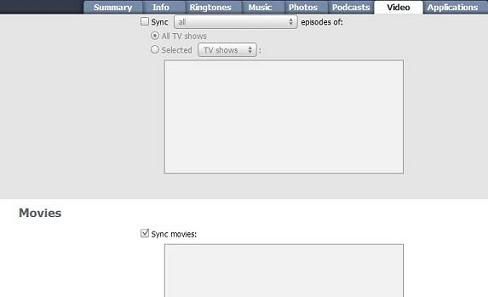
The next time you sync, all of the videos you selected will be copied to your iPad. You can view them by launching the iPod app on your iPad and selecting the video option.
Conclusion
This was just a sampling of the many cool tools out there that can help you download and convert YouTube FLV videos into a format that you can use on your iPad. In most cases, you can do so for free. However, some of the premium packages and services appear to be well worth their nominal fees when you consider everything they provide. In any case, you can enjoy any of your favorite YouTube videos on the new iPad. Well, if you wanna convert M2TS/MTS, MOD, TOD and HD or more to iPad supported formats, you can go to .iFunia iPad video converter , which my friend highly recommended to me
-
June 10th, 2010, 05:43 AM
#2
Inactive Member
Re: Download and convert YouTube to iPad on Mac
Do you guys think this program is qiute perfect??
-
December 19th, 2010, 05:44 AM
#3
Account Suspended

The most complete Video Converter for Mac users!
Tanbee Video Converter for Mac
Video Converter for Mac is a powerful and easy-to-use mac video conversion software which helps you convert videos and audios between various formats for Mac easily and fast, such as AVI, MP4, MOV, MKV, WMV, MPEG, 3GP, VOB video and HD Video (MOD, TOD, MTS). Tanbee Video Converter for Mac makes most video files playable on the iPod, PSP, iPhone, Smartphones as well as many others. This Mac Video Converter can also extract audio from video, movie and convert audio to audio, like MP3, M4A, AAC, etc.
Tanbee AVCHD Covnerter for Mac
AVCHD Converter for mac is a full-featured tool for AVCHD camcorder users, which can convert AVCHD videos (MTS, M2TS, MOD, MOD) to common videos including AVI, MOV, MPEG, WMV, MP4, 3GP, FLV, SWF, and HD videos like HD AVI, HD MOV, HD MPEG, HD WMV. So you can share your masterpieces shot by Sony, Panasonic, JVC, Canon, Hitachi AVCHD camcorder on your favorite digital devices and more multimedia players.
Tanbee Flip Covnerter for Mac
Flip Converter for Mac, extremely intuitive Flip camera video converter. This Mac Flip Converter offers the most robust function to convert Flip videos to AVI, MOV, FLV, 3GP and other popular video formats on Mac OS X. It also natively supports converting AVI, MPG, WMV, DV, MOV, etc and more. With Tanbee Flip Converter for Mac, you can efficiently extract MP3, M4A, etc. audio from Flip video.
Tanbee iPad Video Covnerter Mac
iPad Video Converter Mac is designed for Apple iPad users to watch just about any video format on the iPad. Not only can this program convert general video (WMV, AVI, MPEG, FLV, 3GP) and audio formats to iPad friendly formats easily and rapidly, it can also convert HD videos including AVCHD (*.mts, *.m2ts), MOD, TOD to iPad HD video so you can enjoy movies on your wherever you go.
Tanbee Video Editor for Mac
Video Editor for Mac is specifically tailored for Mac users and video editing fans, which comes packed with video editing features: video trimming video, cropping video, splitting video, adjust special effects, join/merge several video files into one, set encoding parameters, etc.
 Posting Permissions
- You may not post new threads
- You may not post replies
- You may not post attachments
- You may not edit your posts
-
Forum Rules



Bookmarks